
How to Generate a Billable Hours Report
- Navigate to the project or view containing the tasks you want to analyze
- Apply any desired filters (e.g., completed tasks only, specific date range, etc.)
- Select "Compute Billable Hours..." from the menu
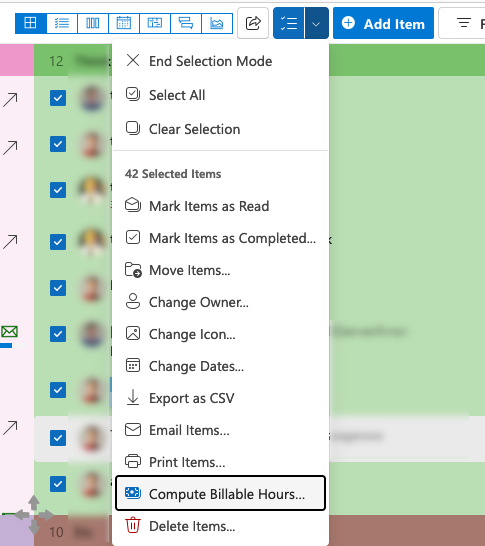
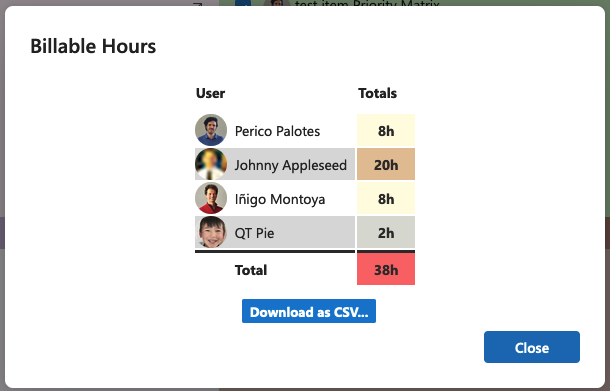
- Review the generated report, which shows:
- List of users involved in the selected tasks
- Total effort estimate for each user
- Overall total effort across all users
- Click "Download as CSV..." to export the report
Important Notes
About Effort Tracking:
- Priority Matrix tracks effort estimates, not actual time spent
- The report includes all tasks in the current view/selection, regardless of completion status
- Use task filters before generating the report to focus on specific tasks (e.g., completed tasks only)
- Reports can be exported to CSV format for further analysis or billing purposes
Common Use Cases
You can generate various types of effort reports by applying filters before computing billable hours:- Completed tasks for the current week
- All tasks assigned to a specific team member
- Tasks within a particular project or category
- Tasks completed within a specific date range
Best Practices
- Set clear effort estimates when creating or updating tasks
- Use task filters to ensure your report includes the correct set of tasks
- Review the generated report before exporting to ensure all relevant team members and tasks are included