
Ever find yourself juggling tasks between different email accounts? Streamlining your task management across Gmail and Outlook is now possible by using a single Priority Matrix account. By setting it up correctly, you can manage and prioritize your tasks, no matter which email inbox they come from. Here’s how:
Installing Priority Matrix Add-in on Outlook
- Access the Add-in Store: Open Outlook, navigate to the 'Home' tab, and then click on 'Get Add-ins' or 'Store'. Note that the specific location of the "Get Add-ins" button is different on each version of Outlook. Alternatively, you can get to Priority Matrix for Outlook from our website, which will take you to AppSource, and skip to step 3.
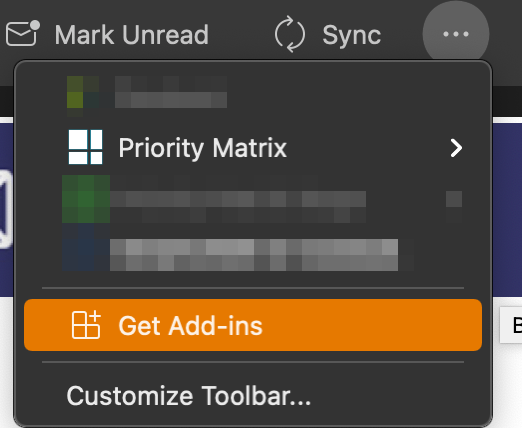
- Find Priority Matrix: Type in 'Priority Matrix' in the search bar within the add-in store.
- Add to Outlook: Click the 'Add' button to install the Priority Matrix add-in on your Outlook.
Installing Priority Matrix Extension on Gmail
- Navigate to Gmail Settings: Open your Gmail account and go to 'Settings,' represented by the gear icon in the top-right corner. Alternatively, you can get to Priority Matrix for Gmail from our website, and skip to step 3.
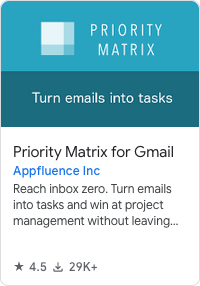
- Access Add-ons: Click on the 'Add-ons' tab, then click 'Get add-ons'.
- Search and Install: Type 'Priority Matrix' in the search bar, then click 'Install' to add the extension to your Gmail.